
Overview
This guide shows you how to check and, if needed, update the IP address (cellular/GPRS server settings) on your Rock device, such as a RockAIR, using the RockConnect app. It takes about 5 minutes.
Use this guide if:
- Your RockAIR is not sending tracking over cellular (4G/LTE), but satellite tracking still works
- You've been asked by TracPlus Support to check your device's IP address, APN or server settings
- Your device has recently been reset, reconfigured or moved from another tracking provider
Why it matters: If these settings are wrong, your RockAIR can't reach the TracPlus server over the cellular network, and you won't receive cellular tracking.
Before you start
Make sure you have:
- A smartphone or tablet with Bluetooth
- The RockConnect app installed (free from the Apple App Store or Google Play)
- Your RockAIR charged or connected to power
- The device's Bluetooth PIN: 1234 or 4321, depending on the age of the unit (if one doesn't work, try the other)
Stay within a few metres of the RockAIR while you work, so the Bluetooth connection doesn't drop.
Steps
1. Turn on your RockAIR and your phone's Bluetooth
Power on the RockAIR and wait for it to finish starting up. On your phone, open Settings and make sure Bluetooth is switched on.
You don't need to pair the RockAIR in your phone's Bluetooth settings. The RockConnect app handles the connection.
2. Connect to the RockAIR in RockConnect
- Open the RockConnect app. If prompted, allow it to use Bluetooth (and Location on Android).
- Wait for your RockAIR to appear in the list of available devices. It's usually listed by its serial number.
- Tap the RockAIR to connect.
- If asked for a PIN, enter 1234. If that doesn't work, try 4321 (older units use a different PIN).
Once connected, you'll see the device's main screen.
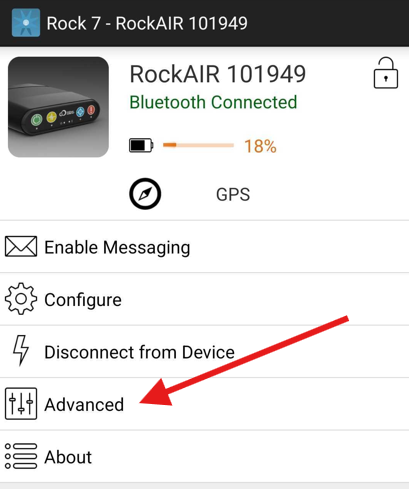
3. Open the GPRS settings
- On the main screen, tap Advanced.
- Tap GPRS Settings.
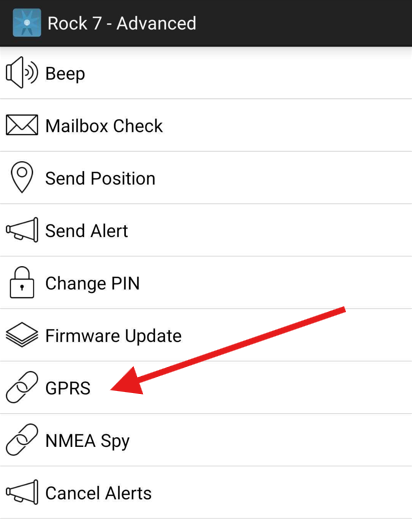
4. Check the Config values
In the Config section, check that the settings match this table exactly:
|
Setting |
Correct value |
|---|---|
|
Access Point Name (APN) |
|
|
Primary Address |
|
|
Primary Port |
|
If all three match, your settings are correct and you don't need to change anything. Skip to Verify it worked.
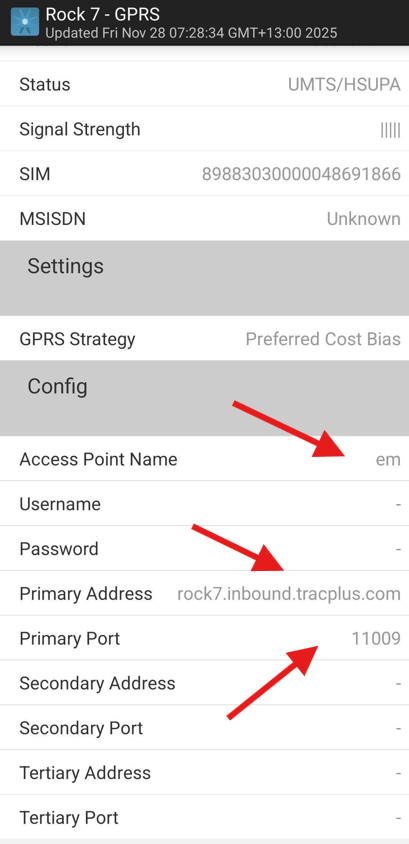
5. Update any incorrect values
- Tap the field that's wrong and delete the existing value.
- Type the correct value from the table above. Check for typos: values are lowercase and have no spaces.
- Save or apply the change (for example, tap Save or Send to device) so it's written to the RockAIR.
- Repeat for any other incorrect fields.
Tip: Leaving a field blank or making a small typo (such as
tracplus.coinstead oftracplus.com) will stop cellular tracking from working.
Verify it worked
- Go back to Advanced > GPRS Settings and confirm the three values have saved.
- Disconnect from RockConnect and restart the RockAIR.
- Take the device somewhere with good mobile coverage and let it send a few positions.
- Log in to TracPlus and check that new positions are arriving via cellular.
Common issues
|
Problem |
What to try |
|---|---|
|
RockAIR doesn't appear in RockConnect |
Check the unit is on and Bluetooth is enabled. Make sure RockConnect has Bluetooth (and on Android, Location) permission. Move closer, then close and reopen the app. |
|
PIN is rejected |
Try the other PIN (1234 or 4321). If neither works, contact Support. |
|
Connection keeps dropping |
Keep your phone within a few metres of the unit and away from metal enclosures. Make sure the RockAIR has enough battery. |
|
Settings don't save |
Check you applied the change before leaving the screen, then reconnect and check again. |
|
Settings are correct but there's still no cellular tracking |
Check the unit has mobile coverage where it's being used and that a cellular plan is active on your account. Then contact Support. |
Still need help?
If cellular tracking still isn't working after these steps, contact TracPlus Support. Include your RockAIR serial number, a screenshot of the GPRS Settings screen, and when you last saw a cellular position.