
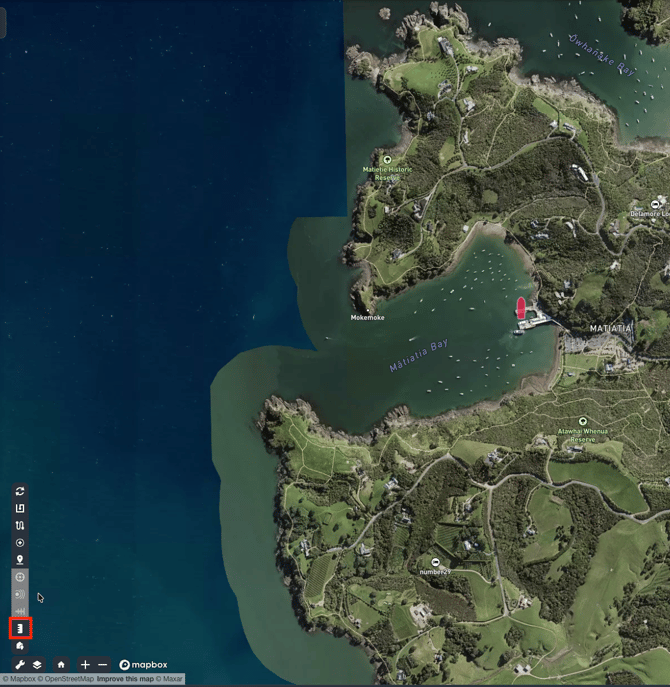
1. Start measuring
- Go to the map view
- Open the map tools (bottom-left).
- Select Measurement tool (highlighted in RED).
- Your cursor should change to a flag icon when the tool is active.
2. Measure distances
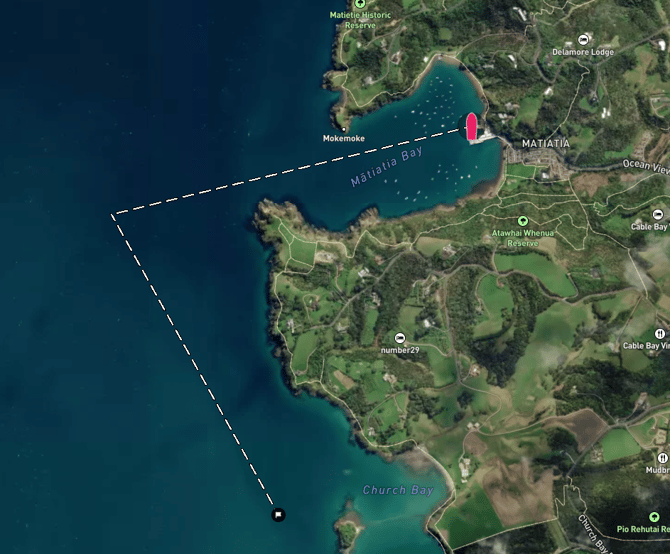
Place points (multi-point measurement)
- Click on the map to place your first point (your origin spot)
- You’ll see a line drawn that follows your cursor.
- Click additional points to extend the measurement path (multi-point).
- Double-click to place an end point / finish the current measurement segment.
- Press ESC key to restart measurement
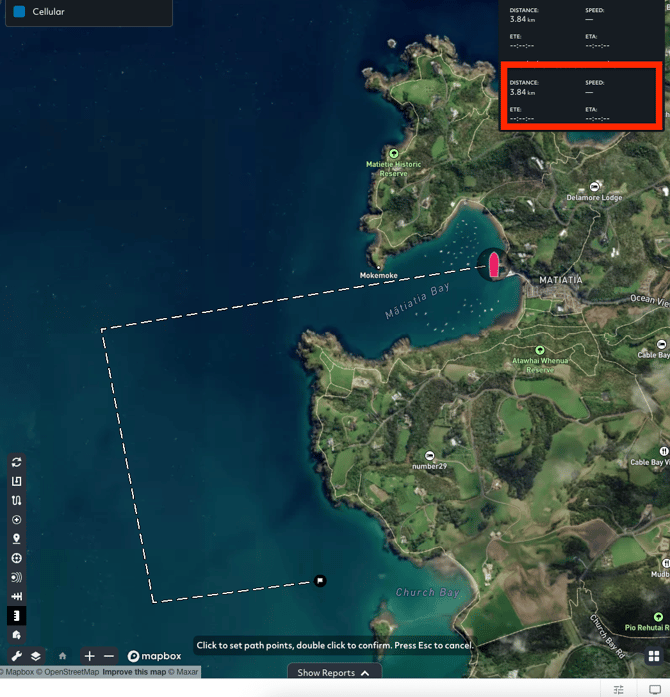
If an asset is selected
The measurement overlay uses the asset as the reference of an origin point.