
- Overview
TracPlus Cloud's new Map Annotations feature allows every user to add annotations to their map. The Map Annotations currently available are Points and Paths.
Only you can see the Map Annotations you create. The annotations are saved on the computer you create them on, so if you move to a new computer or a different browser you won't see the annotations any more. If you need a permanent solution that other people in your organisation can see, Markers are saved in the cloud and shown to everyone in your organisation.
PointsPoints let you mark a location of interest on your map. Points must be given a name and can optionally be given a description. The name and description are shown when you hover over the point.
Creating a Point
- To add a point, click on the Map Tools icon at the bottom left of the screen.
- Click the Point button.
- Click on the map where you'd like to add the Point. If you'd prefer to enter the exact coordinates directly, click anywhere and you can enter them on the next step.
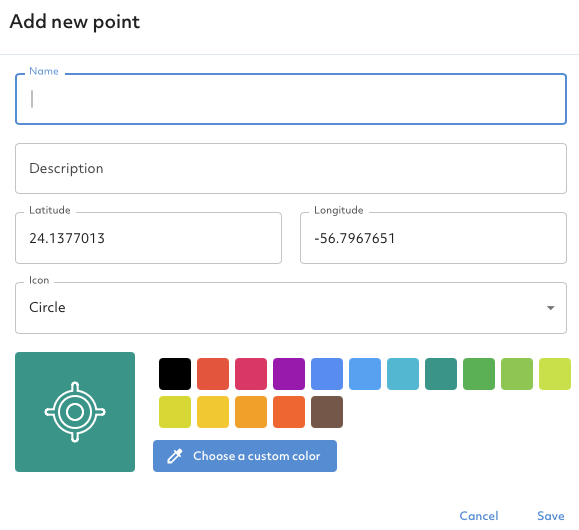
- The Add new point modal will pop up. Enter a name for your point, and optionally add a description or edit the coordinates of your point. You can also choose a different icon (currently the options are a circle or a pin) and change the colour of your point.
- Click Save.
Creating a Path
- Click the Map Tools icon (the wrench) at the bottom left of the screen.
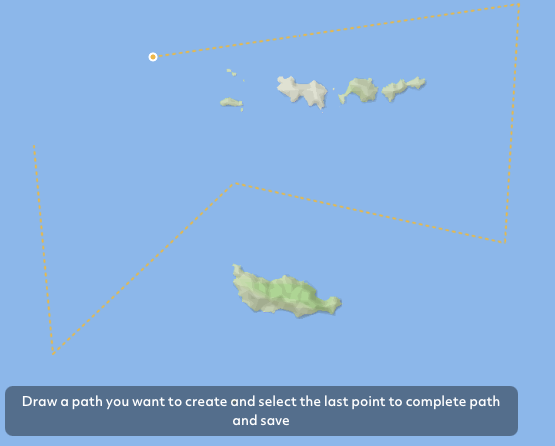
- Click the Path icon (Add Path Annotation). Helper text appears at the bottom of the screen while you draw.
- Draw your path on the screen. Click where you want it to start, then draw the line/shape by clicking where you'd like to add a point to the Path. Double click to complete the Path.
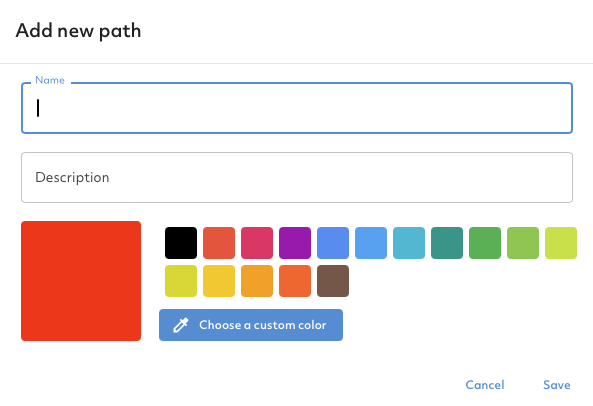
- Add a name for the Path and optionally give it a description. You can also choose what colour you'd like the line to be.
- Click Save. Your Path now appears on the map.
Shortcut: right-click on the map
Right-click on the map where you want the Path to start and choose Add Path Annotation, then continue from step 3 above.
- Click Save
Drawing tips
- To draw a closed shape (such as an area outline), finish your last click on or next to your starting point, then double click.
- Check the shape before you save. Paths cannot be moved once they've been created, so make sure the line is where you want it.
- To cancel while drawing, press Esc. Nothing is saved.
- To measure distance, use the Measurement tool (Map Tools, or right-click and choose Start Measuring). The Path tool does not show a length.
You can edit or remove all your annotations from the Map Settings:
- Click the Map Settings button at the bottom left of the screen.
- Scroll down to the Annotations section.
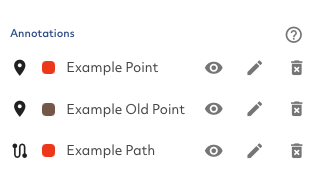
- You will see a list of all your annotations.
- Clicking the eye icon will hide/show the annotation, but won't delete it.
- Clicking the pencil icon lets you edit the Name, Description, and Colour of the annotation. You can also edit the location of a Point; Paths cannot be moved once they've been created.
- Clicking the trash icon will delete the Annotation. This cannot be undone, but you can re-add annotations using the steps above.
Quick edit from the map
You can also click directly on a Point or Path on the map. An edit dialog opens where you can change its details or delete it.
Use cases and best practicesTip: Hiding is a safer choice than deleting when you only want to declutter the map. Hidden annotations stay in your list and can be shown again at any time.
Annotations work best as a quick, personal planning layer on top of your live asset tracking.
Best practices
- Name clearly. Include what and when, for example
LKP 14:20orWater source - dam. - Use colour consistently, for example red for hazards and green for safe landing zones.
- Hide, don't delete, annotations you may need again.
- Tidy up after a job so old annotations don't confuse future work.
- Switch to a Marker when a location matters to your whole team or needs to be kept long term.
My annotations have disappeared. Where did they go? Annotations are saved in the browser on the computer where you created them. They won't appear if you've switched computer or browser, used a private or incognito window, or cleared your browser data. Go back to the original computer and browser to see them. If they were cleared, they can't be recovered; use Markers for anything you need to keep.
I can't see an annotation in the list, or on the map. Open Map Settings > Annotations and check the eye icon. A hidden annotation stays in the list but isn't shown on the map.
I clicked on the map but the Add new point modal didn't open. Make sure the Point tool is selected (the crosshair follows your mouse). Then use a quick click rather than pressing and holding. On slower computers, a long press may not register.
Can my colleagues see my annotations? No. Only you can see the annotations you create. To share a location with your organisation, create a Marker instead.
Can I move a Path? No. Paths cannot be moved once they've been created. Delete the Path and draw it again in the new position.
Can I undo a deletion? No. Deleting an annotation cannot be undone, but you can re-add it using the steps above. Use the eye icon to hide it instead if you might need it again.
How do I stop placing a Point or drawing a Path? Press Esc. The tool is deselected and nothing is saved.
Can I enter exact coordinates for a Point? Yes. Click anywhere on the map with the Point tool, then type the exact coordinates in the Add new point modal.
Are other annotation types available? Points and Paths are currently available. Contact TracPlus Support if you have a request for other annotation types.