
A Watchlist Group is a custom collection of assets that you define for your organisation. Administrators can use Watchlist Groups to organise assets in a way that reflects how your operation actually works, for example by region, base, fleet, contract, customer or aircraft type.
Watchlist Groups help you:
- Focus on what matters by bringing the assets directly related to your operation together in one place.
- Reduce clutter by hiding organisation assets that aren't relevant to your particular region or area of operation.
- Find assets faster during day-to-day tracking and when responding to events, because related assets sit side by side.
- Keep things consistent across your team, since every user in your organisation sees the same group names.
You can set up as many Watchlist Groups as your operation needs, and each asset can be assigned to one group at a time.
Before you start
Note: Only users with Administrator privileges can set up or edit Watchlist Groups. If you can't edit the Watchlist Group field, ask an Administrator in your organisation to make the change or to update your permissions.
Make sure you have:
- An active TracPlus Cloud account with Administrator access.
- At least one asset already set up in your organisation.
- A name in mind for your group (see Naming your Watchlist Group below).
-
How to add an asset to an existing Watchlist Group
- Open Manage. Click the Manage icon in the left-hand side navigation.
- Go to your assets. Select the Assets tab to see the list of assets in your organisation.
- Select the asset. Click the asset you want to add to a Watchlist Group. This opens the asset's settings.
- Find the Watchlist Group field. Under Asset Details, locate the Watchlist Group field. It sits alongside the asset's other details, such as Name, Category, Make, Model, Variant and Messaging Handle.
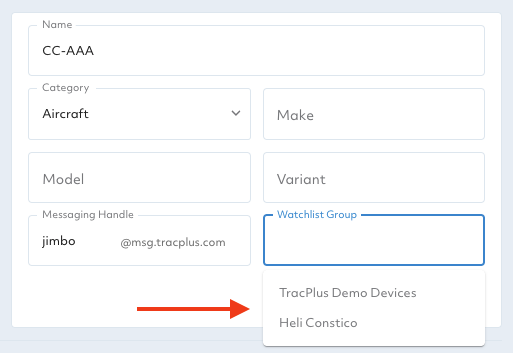
- Choose a group. Click inside the Watchlist Group field. A dropdown appears listing the Watchlist Groups already set up in your organisation (for example, TracPlus Demo Devices or Heli Constico).
- Select the group you want this asset to belong to.
- Check that it saved. Changes are saved automatically. If a Save button is shown, click it to confirm your change.
[Screenshot: Adding to an existing watchlist group — the Watchlist Group dropdown showing existing groups]
Repeat these steps for each asset you want to add to the group.
How to set up a new Watchlist Group
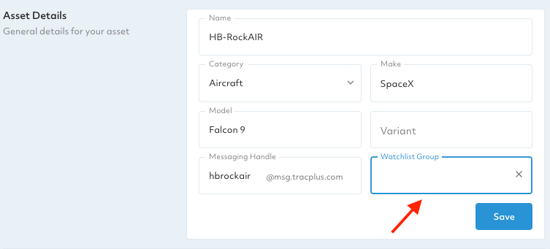
There's no separate screen for creating a Watchlist Group. A new group is created the first time you type its name into an asset's Watchlist Group field.- Follow steps 1 to 4 above to open the asset's Asset Details and find the Watchlist Group field.
- Click inside the Watchlist Group field. If a dropdown of existing groups appears, ignore it.
- Type the name of your new Watchlist Group.
- Your new group is created and the asset is added to it. Changes are saved automatically; if a Save button is shown, click it to confirm.
- To add more assets to this new group, open each asset and select the group from the dropdown, as described in How to add an asset to an existing Watchlist Group.
[Screenshot: Setting up a new watchlist group — typing a new name into the Watchlist Group field]
Tip: Once a new group has been created, it appears in the dropdown for every other asset in your organisation. Select it from the list rather than retyping it, so that small differences in spelling or capitalisation don't create a duplicate group.
How to move or remove an asset from a Watchlist Group
To move an asset to a different group, open the asset's Asset Details, click the Watchlist Group field and select (or type) a different group name.
To remove an asset from its group, open the asset's Asset Details and click the × at the right-hand end of the Watchlist Group field to clear it. The asset will no longer belong to any Watchlist Group.
As with adding an asset, these changes are saved automatically.
Naming your Watchlist Group
You're free to name your Watchlist Group however you like.
Important: Watchlist Group names are visible to everyone in your organisation and to any friends you share your assets with. Avoid internal codes, customer-sensitive details or informal names you wouldn't want other organisations to see.
Tips for clear, useful names:
- Be descriptive. Names like North Island Rescue, Fixed Wing Fleet or Queenstown Base tell users exactly what's in the group.
- Keep it short. Short names are easier to scan in lists and dropdowns.
- Be consistent. Agree on a naming style with your team (for example, Region – Fleet Type) so groups stay easy to understand as you add more.
- Check for existing groups first. Look through the dropdown before typing a new name, to avoid creating near-duplicates such as Heli Fleet and Helicopter Fleet.
Troubleshooting and FAQ
I can't edit the Watchlist Group field. Only Administrators can set up or change Watchlist Groups. Ask an Administrator in your organisation to make the change, or to update your access level.
The dropdown doesn't show any groups. No Watchlist Groups have been set up in your organisation yet. Type a name into the field to create your first group.
I've ended up with two groups that look almost the same. This usually happens when a group name is retyped with a small spelling or capitalisation difference. Open each affected asset and select the correct group from the dropdown so all assets sit in the same group.
Can an asset belong to more than one Watchlist Group? No. Each asset belongs to one Watchlist Group at a time. Selecting a new group moves the asset out of its previous one.
Who can see my Watchlist Group names? Everyone in your organisation, plus any friends you've shared the asset with.
Do I need to save my changes? Changes are saved automatically. If a Save button appears on the asset settings, click it to confirm.
Need more help?
If you have any further questions or need a hand setting up your Watchlist Groups, our support team is happy to help. Contact us by email at support@tracplus.com.
If you have any further questions or require assistance, please don’t hesitate to contact us via email at support@tracplus.com