
The TP Connect app has the ability to allow users to customise the settings for their tracking devices – such as tracking frequency, alert settings and more. Any changes you make on this screen will take effect straight away.
We recommend you do not change these settings unless you are confident you know what you are doing or have contacted TracPlus Support for assistance.
Table of contents:
Navigating to custom settings
Firstly, you need to make sure that the device is connected to the TP Connect app and it is the correct device. If you are not sure then please read this guide here: TP Connect for iOS
Once you are connected to the device the pin to connect is 1 2 3 4, Tab on the 'Configure' Icon along the bottom and go to the "Custom" option. It will prompt for a PIN which 4 3 2 1 and it will allow you access to the Custom section.
1. Tracking:
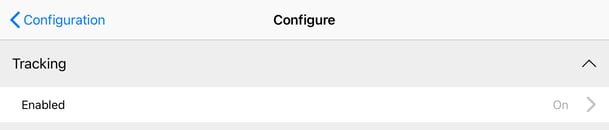
- Toggling this option allows you to turn the automatic position reporting on or off.
- When turned on, the device will automatically obtain a GPS fix and transmit reports at a specified reporting rate
Tracking > Satellite and Cellular Context:
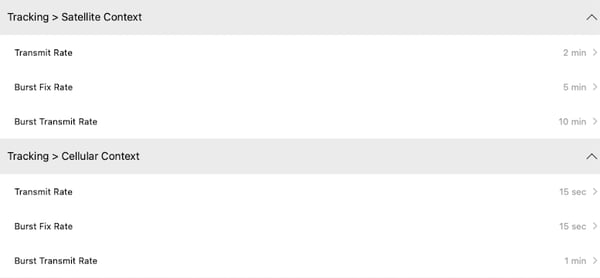
- Both of these sections will allow you to update the transmission rate for your device depending on the connection type (Sat/Cell)
- It is critical to know what each option does as the "Transmit rate" option is used uniquely depending on the purpose of the device or where it is being used.
Transmit rate: The transmit rate is at which routine positions/GPS fixes are transmitted/captured. In the satellite context section, you can define it over the satellite network and over cellular context you define it for cellular network.
When a specific transmit rate is selected. e.g. 2 mins. then the device will record and transmit the position every 2 mins. The options below: Burst Fix Rate and Burst Transmit Rate will be ignored even if there is a value.
If you wish to specifically define when a position/GPS fix is captured (i.e. Burst Fix Rate) and when those positions/GPS fixes (i.e. Burst Transmit rate) then you will need to set it to Transmit rate: Burst
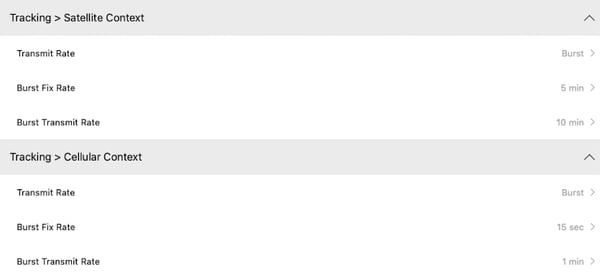
When Burst is selected under Transmit rate, only then the Burst Fix Rate and Burst Transmit rate will be applied.*
Burst Fix Rate: Frequency at which the device captures a position/GPS fix.
Burst Transmit Rate: Frequency at which the device transmits all the recorded positions/GPS fix.
*Note: This is not applicable if the "Activity Sense" option is turned on. i.e. either POWER, BUMP or SOG + BUMP option is selected, further breakdown is provided further below in this article. Activity sense feature is primarily used for Marine vessels and is only made active for Maritime profile.
Tracking > Distress Context:
- The Distress context section allows users to update the distress transmission rate. We do not want to change or update that as it is recommended to keep it in on its default settings.
Tracking > ActivitySense:
- Activity sense causes the routing transmission rate to switch to burst mode if the device detects an activity.
- "Enabled" has five options:
- Off - ActivitySense feature is turned off [default]
- Power - ActivitySense only trigger when Power is detected through the device.
- Bump - ActivitySense will trigger when the device experiences a BUMP.
- SOG (Speed on Ground) - ActivitySense will switch to Burst Mode when the tracker’s SOG is greater than 4 knots, and return to Normal Mode when SOG is less than 4 knots.
- Away From Home - ActivitySense will switch to Burst Mode when the device detects it has left a user-defined Home Location, and return to Normal Mode when it detects it has returned to that Home Location. (Note: not available on RockSTAR)

Activity Sense Status. Allows you to turn activity sense on and choose an activity sense profile: Power, Bump, GPS or Bump + GPS. Turning activity sense on will set the tracker to switch from normal ‘tracking frequency’ to burst (see above) tracking settings when speed, vibration or power is detected.
Activity sense can be useful if you want to automatically switch your tracking rates with power, speed or movement as the trigger. This is particularly useful for tracking vehicles or aircraft.
Activity Sense Threshold. The threshold is a customization tool that alters the sensitivity level within the activity sense menu which can be used to change when the device thinks it is ‘moving’ – this will depend on your exact situation, but we have found that setting this option to ‘24’ is a good start and works for most situations.
Alerts
Configuring Alerts
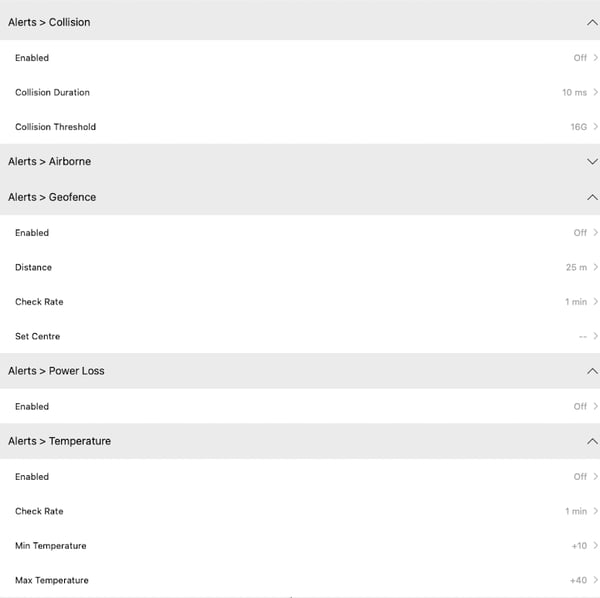
The device can be set to send automatic alerts for a variety of situations. We recommend you consult the manual for your device for a full explanation of exactly how each alert can be triggered or configured. All manuals can be found here.
Mailbox

This setting can be used to force your device to check Iridium for text messages awaiting delivery to your device. It is off by default.
Be aware, mailbox checks use Iridium data just like position reports. A normal tracking report from your device will also automatically check your mailbox for free, so it is not recommended to have both tracking and mailbox checking set to on.
External Data
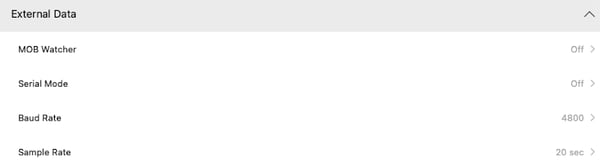
|
MOB Watcher |
No details available yet |
|
Serial Mode |
No details available yet |
| Baud Rate | No details available yet |
| Sample Rate | No details available yet |
Settings
External Power Mode. The recommended option depends on which type of device you have, please leave it on the default from when the Tracking Profile is selected.
Notification Style
GPRS Strategy.
Never = Satellite tracking ONLY
Always = Cell tracking ONLY
Preferred = Sat/Cell both available, and it will switch connection depending on latency
GPRS Settings
GPRS Settings can be found here:
-
(Android) Setting up your RockAIR/RockFLEET for use with TracPlus
- (iOS) Setting up your RockAIR/RockFLEET for use with TracPlus
GPS
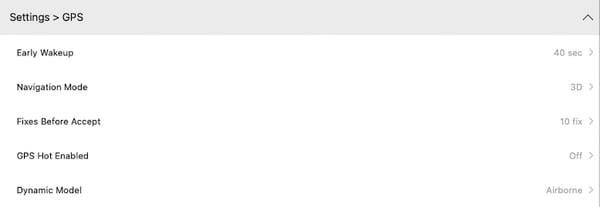
Set your GPS quality, early wakeup, hot status and usage settings here. Please consult your manual for best practices but TracPlus recommends an Early Wakeup of 40 seconds, Mode = 3D and 10+ fixes before accepting a valid position.
Advanced
Input Sensitivity. This sets the sensitivity of the switch wires to changes when the 3 external switch wires are activated. Recommended setting is 'All Slow.'
Debug Log Mode.
Please ensure that this set to Internal or else the log files are not saved onto the internal memory.
Data Format
This can be left as Standard.
Logging

Your device can create a log file of GPS positions independent of your tracking settings. These files are stored locally on your device and can be exported in GPX format. Use your USB cable connected to a PC to access these GPX log files. There is a guide to GPS Logging and viewing your GPX file within Google Earth.