
TracPlus Cloud administrators use Manage > Contacts to set up contact people, ICE (emergency) contact groups, and messaging whitelists.
- Contacts store a person's name, phone number(s), and email address. These can be external people (like local authorities or family members) and do not need a TracPlus Cloud login.
- ICE contact groups receive distress alerts from the assets assigned to them.
- Messaging whitelists control who can send text messages to an asset. Messages from anyone not on the list are blocked.
Note: Only users with an Administrator role can edit these settings.
Managing Contacts for an Organisation
To create a new contact for an organisation (Example page):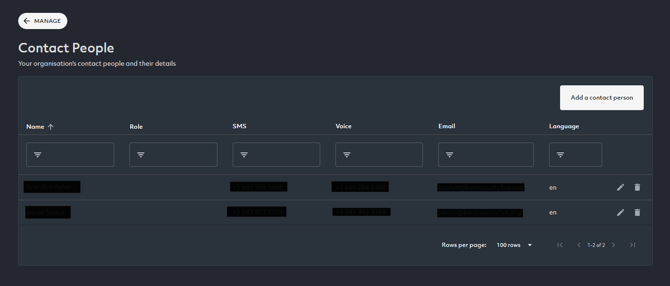
o add a new contact:
- Go to Manage > Contacts > Contact People and click Add a contact person.
- Enter their name and role (optional), then click Save.
- Enter their phone number(s) and email, then click Save. Use full international format (e.g. +64 21 123 4567). You can skip this step, though contacts without a phone number cannot receive alerts.
Edit or remove a contact On the Contact People page (use the filters if you have a long list), click the Edit icon to update numbers or emails. To delete someone, click the trash icon or select Remove on the Edit Person page. Deleting a contact also removes them from every group they belong to.
ICE Contact Groups
When an asset's device triggers a distress alert, TracPlus notifies the members of that asset's ICE group from top to bottom: primary, secondary, then backups. A group must have at least two contacts, though adding five or more helps ensure someone is always reachable.
Notification behaviour depends on your plan (see tracplus.com/distress for details):
| Service | What happens |
|---|---|
| Notify Only (all plans) | Sends an SMS to ICE contacts every two minutes until someone replies to acknowledge it. Your contacts handle any further escalation. |
| Notify then Call (optional) | Sends an SMS first. If nobody acknowledges it within five minutes, TracPlus calls your ICE contacts in order and escalates to authorities if no one answers. |
| Notify and Call (optional) | Sends an SMS and immediately starts calling ICE contacts in order, escalating to authorities if no one answers. |
Create a group
- Go to Manage > Contacts > ICE Contact Groups and click Create a contact group.
- Enter a name and click Save.
- Use the right arrow to add existing contacts (or click Add a new contact person).
- Drag contacts or use the up/down arrows to set the call order. The person at the top is called first.
- Click Save.
Manage a group Click the Edit icon next to a group to:
- Rename the group and click Save.
- Click Manage people in this group to add, remove, or reorder contacts.
- Click Set as default. Any asset without an assigned group uses the default. Your default group must have at least two contacts, and both the primary and secondary contacts need complete voice and SMS numbers.
- Click Remove to delete the group. Your organisation must have at least one ICE group, so you cannot delete the last remaining one.
Messaging Whitelists
Because satellite messaging incurs transmission costs, whitelists let you restrict who can message each asset.
Create a whitelist
- Go to Manage > Contacts > Messaging Whitelist Contact Groups and click Create a contact group.
- Enter a name and add contacts using the right arrow (or click Add a new contact person).
- Click Save.
To update members later, click the Edit icon next to the group and select Manage people in this group.
Default whitelist: Applied to any asset that doesn't have its own whitelist. If you only have one whitelist, it becomes the default automatically. To change it, click Edit on another group and select Set as default messaging whitelist.
Automatically added contacts: If an asset sends a message to a number not on its whitelist, TracPlus automatically adds that number to the whitelist as "Unknown" (for example, when a pilot texts a landowner). You can edit these entries later to add the person's name and details, or delete them.
Assigning Groups to Assets
You assign ICE groups and whitelists the exact same way. Pick whichever method suits you best:
- From the group: Click Edit on the group, then select Assign assets to the group (or Assign assets to this messaging whitelist). Move assets over with the right arrow and click Save.
- From the asset: Go to Manage > Tracking > Assets, click Edit on the asset, and select Assign ICE Contact Group or Assign Messaging Whitelist. Pick a group and click Save.
- In bulk: Open the Bulk Asset Assignment tab on either the ICE Contact Groups or Messaging Whitelist Contact Groups page. Filter and select your assets, click Assign contact group, verify the group's members, and click Save.
Troubleshooting
| Problem | Fix |
|---|---|
| Can't set an ICE group as default | Check that the group has at least two contacts, and that both the primary and secondary contacts have voice and SMS numbers. |
| Can't delete an ICE group | It is your last remaining group. Create a new group before deleting this one. |
| Alert went to the wrong people | Check which ICE group is assigned to the asset. It may be falling back to your default group. |
| Message to an asset wasn't delivered | Make sure the sender is saved as a contact and included in that asset's messaging whitelist. |
Need help? Email support@tracplus.com.