
TracPlus Cloud is a web-based common operating picture: one map showing the live location, status and history of every asset you own, plus every asset other organisations share with you. This Quickview walks through each part of the main screen so you know where everything is and what it does.
Log in at cloud.tracplus.com with your email, a shared view-only usercode, or Microsoft login (if set up for your organisation). Some features depend on your plan, role or device.
The screen at a glance
The main screen has six regions: the navigation menu, the asset list, the map, the asset details panel, the map controls, and the status bar along the bottom.
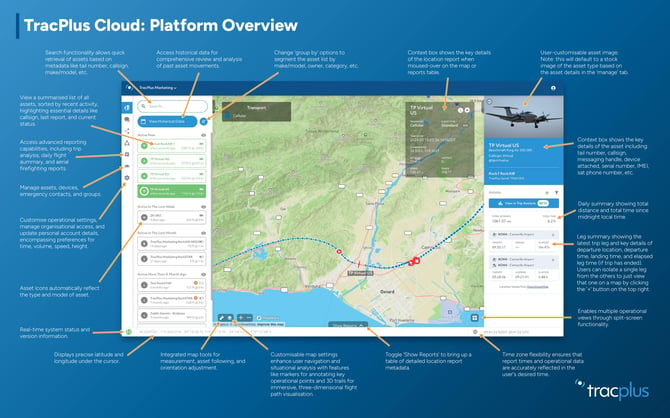
|
Region |
Where |
What it's for |
|---|---|---|
|
Organisation switcher |
Top left, blue header |
Shows the organisation you're viewing; switch between organisations you have access to |
|
Navigation menu |
Far left, vertical icon bar |
Moves between Map, Messaging, Sharing, Reporting, Manage and Settings |
|
Asset list |
Left panel |
Search, view historical data, group assets, and browse every asset by recent activity |
|
Main map |
Centre |
All assets, trails, report dots and event icons on one map |
|
Asset details panel |
Right panel (appears when an asset is selected) |
Asset image, asset and device details, daily activity, legs and Trip Analysis |
|
Map controls |
Bottom of the map |
Map tools, map settings, Show Reports, split-screen |
|
Status bar |
Very bottom of the window |
System status and version, cursor coordinates, time zone |
Navigation menu (left)
The organisation name at the top left switches between organisations you can access. The icon bar below it opens each area:
|
Area |
Use it to |
|---|---|
|
Map |
Track assets live (this article) |
|
Messaging |
Send and view two-way messages with assets |
|
Sharing |
See assets shared by you and with you; admins can edit access |
|
Reporting |
Run Trip Reports, Trip Analysis, Daily Flight Summary and Aerial Firefighting reports |
|
Manage |
Manage assets, devices, emergency contacts and groups |
|
Settings |
Set units (time, volume, speed, height), organisational access and account details |
Asset list (left panel)
A summarised list of all assets, sorted by recent activity, showing callsign, last report and current status.
- Search by tail number, callsign, make/model or other metadata.
- View Historical Data opens a calendar; days with tracks have a green line. Pick one to load that day (midnight to midnight).
- Group by (#) segments the list by make/model, owner, category, watchlist group or operator.
- Activity groups (Active Now, Last Week, Last Month, More Than a Month Ago) can be hidden with the eye icon.
- Asset cards show an icon matching the asset type and model, last report time (hover for the exact time), altitude, speed, and battery or tracking-suspended status where supported. A red card means an SOS/distress event.
Click a card to select the asset: the map zooms to today's tracks and the details panel opens.
Main map (centre)
- Trails and report dots appear for the selected asset; zoom in to see individual reports and events.
- Context box (top right of the map): hover a report dot or table row to see its time, position, altitude, speed and gateway.
- Map tools (wrench): measure distance and ETA, follow an asset, reset orientation.
- Map settings (layers): base maps, KML/KMZ overlays, markers, 3D trails, trail and label options.
- Show Reports (bottom centre): location reports for the selected day; choose columns, filter events, export CSV or KML.
- Split screen (bottom right): up to four map views at once.
Asset details panel (right)
- Asset image – defaults to a stock image of the asset type; admins can upload their own.
- Asset details – tail number, callsign, messaging handle, device, serial number, IMEI and sat phone number.
- Daily summary – total distance and time since midnight local time, plus View in Trip Analysis (beta).
- Leg summary – each leg's departure, landing and elapsed time (based on device power on/off). Click + to view one leg alone, − to return.
Status bar (bottom)
- System status (green arrows, bottom left): platform status and version. Refresh the page to update.
- Coordinates: latitude and longitude under the cursor, in d, dm and dms formats.
- Time zone (globe, bottom right): change the time zone used for all reports and views.
Troubleshooting
- No assets showing? Check the eye icons, clear the search box and confirm the organisation at top left. Still nothing? Ask your admin or Support for access.
- No trail for a selected asset? It may not have reported today; use View Historical Data.
- Feature missing? It may depend on your plan, role or device; contact your account manager.
- Need more than one day of data? Use Reporting > Trip Reports (up to 30 days) or the Historic Tracking Data export.
Need help? Email support@tracplus.com with your organisation, the asset and the date and time of the issue.